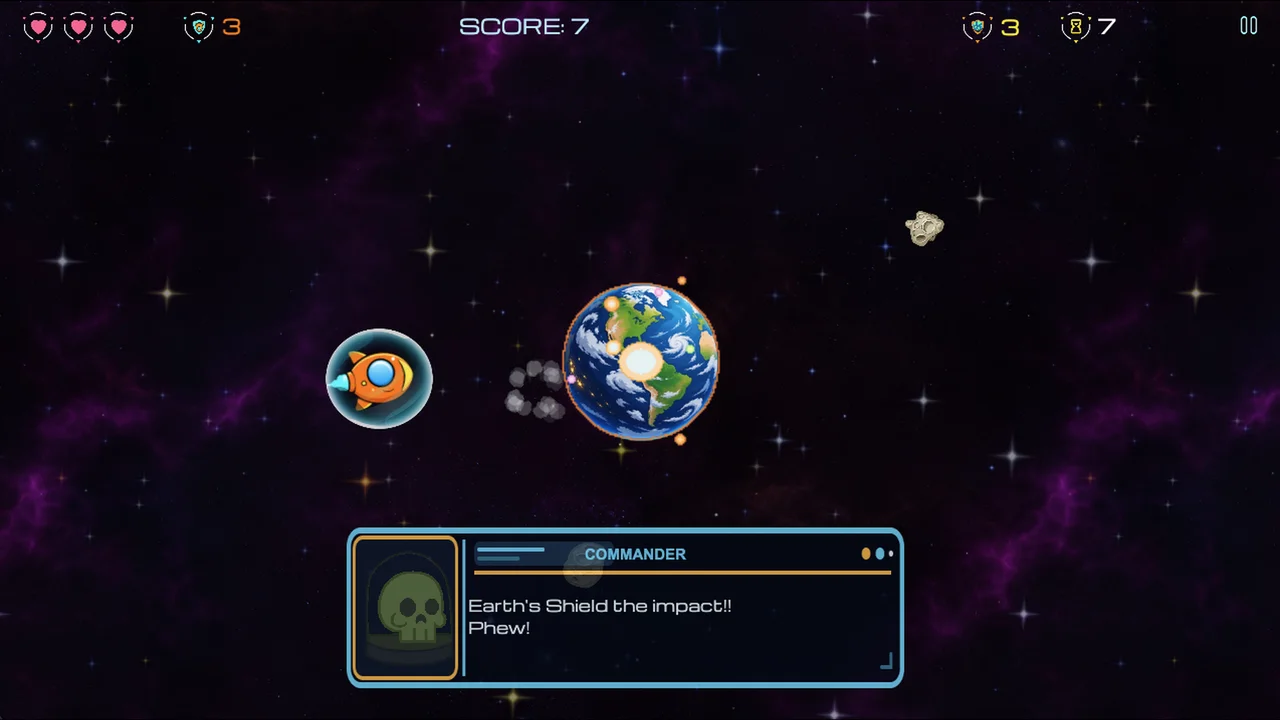
PERIGEE PANIC is an arcade space shooter from RB Games in which you defend Earth from asteroids and UFOs while managing your ship’s gravity-driven movement.
Key takeaways
- Play the free browser version at rbgames.dev/play/ without creating an account.
- Add a Home Screen icon to return to the web game more easily.
- Use the separate offline-save control before relying on the web game without a connection.
- The Android app is on Google Play; a browser/PWA installation is a different route.
Which version should you open?
PERIGEE PANIC is a single-player arcade space shooter from RB Games. You defend Earth from asteroids and UFOs while managing the ship’s gravity-driven movement. You can start in a browser or use the Android app, depending on where you want to play.
The browser route is the quickest way to try the game: open https://rbgames.dev/play/ and select Play Now. There is no account requirement for free browser play. Start with one run to get a feel for aiming, thrust and braking before exploring the other options.
How do you add a Home Screen icon?
The browser launch page has an Add to Home Screen control. Use it to open the installation prompt or the instructions for your device. The icon gives you a convenient way back to PERIGEE PANIC without searching for the page again.
On iPhone or iPad, follow the Safari instructions shown by the site: open the Share menu and choose Add to Home Screen. Then launch the new PERIGEE PANIC icon. If you are using another browser or a desktop computer, follow the installation guidance shown on the page, since the available controls differ.
This is the web/PWA version. Adding its icon does not install a native iOS App Store release. You can also keep using the browser page if you do not want an icon.
How do you prepare for offline play?
Installing an icon and saving the game files are separate steps. While you still have a connection, open the game’s launch page or installed web app and choose Save game for offline play. Keep the page open while the files save and wait for the completion message.
Check the saved game on the device you intend to use before travelling. If saving is interrupted or the page reports that offline saving is unavailable, use the game online until the download succeeds. Online features such as leaderboards and purchases still need an internet connection.
Keep the saved browser data if you want to retain the downloaded files. Removing site data or uninstalling the web app can affect what remains on that device. Preparing one device does not prepare another.
Where is the Android version?
Find PERIGEE PANIC on Google Play at https://play.google.com/store/apps/details?id=com.rbgames.perigeepanic. The Play Store listing is the place to check the current Android release and its device requirements.
Touch players use the on-screen flight and fire controls. Landscape gives the action and controls more room. On the browser version with a keyboard, W or the up arrow boosts, S or the down arrow brakes, and A or D moves sideways. Aim with the mouse and click to fire.
Do purchases follow you automatically?
Free play and purchase restoration are separate flows. For web purchases, use the same email when restoring. An existing Google Play purchase must first be linked from the Android app; signing in with Google alone does not transfer it.
If the game reports that it cannot find a verified Extras Pack, check which email and purchase route you used before buying again. Use the current in-game purchase screen for the exact pack contents and price. Cosmetic customisation gives no gameplay advantage.
Which installation instructions should you follow?
On an iPhone, Apple explains how to add a website to the Home Screen in Safari. Open PERIGEE PANIC in Safari first, use the Share menu, and look for Add to Home Screen. Apple’s guide also explains the option to open a site as a web app. The labels and menu layout can vary with the version of iOS on your device.
On Android, Google’s Chrome web app instructions explain how to install an eligible website from the browser. The exact menu can differ between browsers and devices. The Google Play app and the browser installation are separate ways to access PERIGEE PANIC, so choose the one that suits your device.
What if the game does not open offline?
Reconnect to the internet, open the PERIGEE PANIC launch page and use its offline-save control. Wait for the completion message before disconnecting. If you added an icon but did not save the game files, the icon alone may not make the game available without a connection.
Try the saved game on the same device before you need it offline. Clearing the browser’s site data or removing the installed web app may remove saved files. Online features such as leaderboards and purchases require a connection even when the game files are saved.
Which route should you try first?
If you are curious, start with free browser play: visit the play page and launch a run. If you regularly use an Android device, the Google Play listing is another route. If you prefer a Home Screen icon, follow the installation guidance for your browser, then separately save the game files for offline play.
Purchases and restoring an Extras Pack use a separate flow from free play. Before buying again, use the same account or email associated with the original purchase and follow the in-game linking instructions for the relevant purchase route.
Ready for your first run?
Open https://rbgames.dev/play/, start a run and watch your flight path as closely as the targets. Earth needs defending, but it is also the planet you need to avoid crashing into.